Static designs can be beautiful… but on today’s fast-scrolling feeds, movement is often what gets people to actually stop. A subtle text bounce, a logo reveal, or a quick slide-in headline can turn a “nice post” into something that feels alive and more importantly, more memorable.
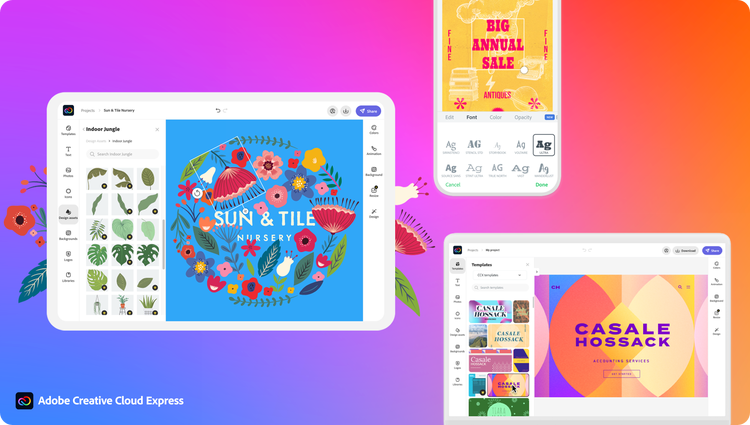
The good news: you don’t need advanced motion skills to start animating your visuals. With Adobe Express, you can take designs you already have (social posts, flyers, quotes, thumbnails, simple ads) and add animation in minutes perfect if you’re trying to boost engagement without adding hours to your workflow.
And yes, if you’re just starting out, you can treat Adobe Express like a free animation maker for simple motion graphics especially for quick social content and lightweight brand visuals.
Why motion beats “perfect” most of the time
Video and animated content aren’t just trends they’re tied to how people consume information now. In Wyzowl’s 2026 video marketing stats, 84% of consumers say they want to see more videos from brands, and 89% say video quality impacts their trust in a brand. That “quality” doesn’t always mean cinematic production it often means clear, readable, and polished visuals.
On the distribution side, WordStream reports that social video generates 1200% more shares than text and image content combined, and that viewers may retain more of a message via video than text-based formats. In plain terms: motion can help your message travel farther.
What “animated visuals” should look like (so they don’t feel messy)
Before you animate anything, keep one rule in mind: motion should support the message, not compete with it.
A clean animated visual usually has:
- One main focal point (headline, product, offer, or face)
- One motion style (don’t mix five different effects)
- A short duration (think 3–8 seconds for social loops)
- Enough breathing room (spacing matters more when things move)
If your design is already busy, animation can make it feel chaotic. Start simple.
How to animate a static design in Adobe Express
Adobe Express makes animation approachable because you can animate an entire design quickly or animate elements one-by-one.
Here’s a practical workflow:
1) Start with a strong static base
Upload your design or create one from a template. Make sure your hierarchy is clear:
- Big headline
- Supporting line (optional)
- CTA (optional)
- Visual (product image, icon, background)
2) Animate everything fast (best for beginners)
If you want a quick win, use the option that animates your layout with one click. Adobe Express supports animating design elements (like text blocks, images, shapes, icons) either all at once or individually.
Use this when:
- You’re making daily social posts
- You’re testing multiple variations quickly
- You want consistent movement without overthinking
3) Animate key elements individually (best for a “pro” feel)
To make motion feel intentional, animate only what matters:
- Headline enters first (“In”)
- Supporting text follows
- CTA appears last
Adobe Express includes animation options like In, Out, and Loop, which helps you control whether something enters, exits, or keeps moving subtly.
A simple sequence like that instantly feels more premium than random movement everywhere.
4) Add transitions for multi-page designs
If you’re turning one static design into a short story (like a carousel-style video), use multiple pages and transitions. Adobe Express supports transitions between pages in multi-page designs, which is perfect for mini explainers or “tips” content.
High-performing animated ideas you can make in under 15 minutes
If you want animation that actually supports content goals, try these:
- Logo reveal for brand consistency at the start of videos
- Quote or stat highlight (headline pops in, source line fades)
- Before/after (two frames + quick transition)
- Product feature callouts (icons slide in next to the product)
- Event promo loop (date/location pulses gently)
Quick checklist so your animations look clean
- Keep text large (motion makes small text harder to read)
- Limit to 1–2 animation styles per visual
- Use “Loop” only for subtle accents (like a gentle emphasis)
- Watch it once with sound off (most people will)
- Export and test on mobile your real audience view
Final thought
You don’t need to become a motion designer to benefit from animation. If you already know how to create good static visuals, adding simple movement in Adobe Express is one of the fastest ways to make your content feel more modern, more clickable, and more shareable without blowing up your schedule.
If you want, tell me what kind of design you’re animating (IG post, logo, promo banner, quote graphic, etc.), and I’ll suggest 2-3 animation styles that fit it.